> For the complete documentation index, see [llms.txt](https://foregate.gitbook.io/foregate-docs/llms.txt). Markdown versions of documentation pages are available by appending `.md` to page URLs; this page is available as [Markdown](https://foregate.gitbook.io/foregate-docs/getting-started/google-authenticator-for-multi-factor-authentication-mfa.md).
# Google Authenticator for Multi-Factor Authentication (MFA)
Learn how to enable multi-factor authentication on your ForeGate account using a passkey or authenticator app for stronger login security.
###
## 1.6 What is Multi-Factor Authentication (MFA)?
Multi-Factor Authentication (MFA) is a **multi-layered security mechanism, designed to verify the identity of a user before granting them access to an account.** It adds an additional layer of protection against unauthorized access.
**MFA** is particularly crucial for safeguarding your **crypto assets** and **ForeGate account**. Even if a hacker manages to obtain your **password**, they would still need the **second factor** (e.g., **Google Authenticator**) to gain entry to your account, making it considerably more challenging to breach your security.
{% hint style="warning" %}
Never share your password, wallet recovery phrase, or private keys.
{% endhint %}
***
### 1.6.1 How to enable Google Authenticator for MFA on the ForeGate?
Before you begin, please download and install the official Google Authenticator app on your mobile device.
{% stepper %}
{% step %}
### **Step 01]** **Navigate to Security Settings**
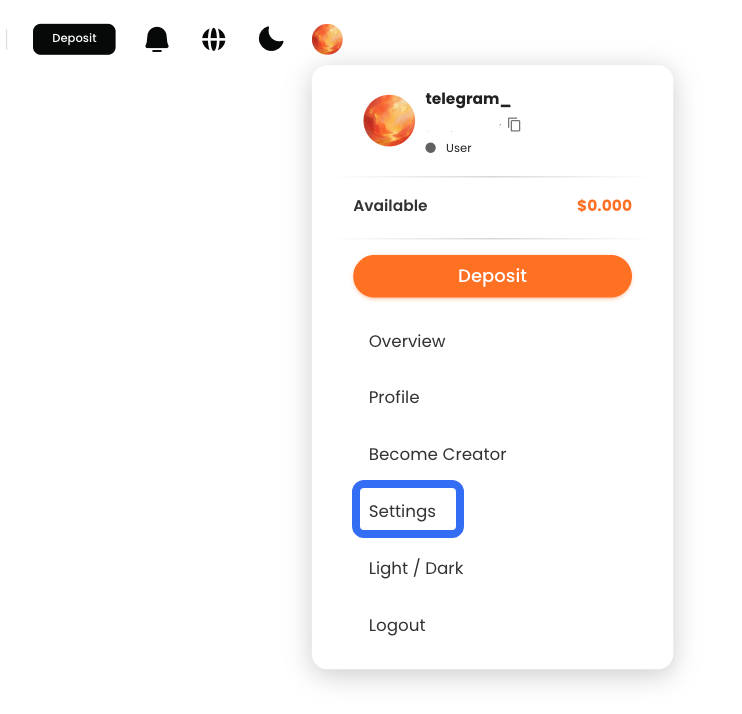
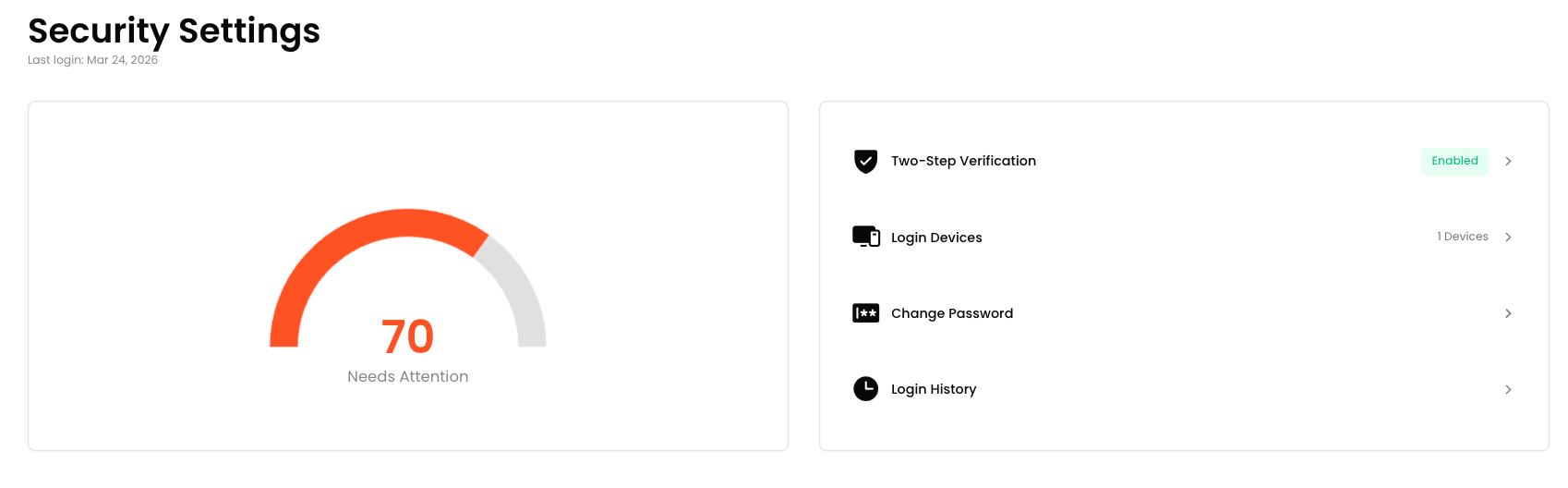
* Log in to your ForeGate account, tap the **Profile** icon, then select **Setting** at the top. From there, go to **Security**.
{% endstep %}
{% step %}
### **Step 02]**** Enable Authenticator App**
* Tap **Authenticator App**, then tap **Enable**.
*
```
⚠ (Ensure your device is not in dark modeif the QR code is difficult to scan)
```
{% endstep %}
{% step %}
### **Step 03]**** Link Google Authenticator**
* A **QR code** and **a setup key** will appear. Copy the setup key.
\*
```
* Open the Google Authenticator app on your mobile device, tap the **+** button, and select **Enter a setup key**. Paste the copied key, enter a name for the account, and tap **Add**. The account will now appear in your Google Authenticator.
*
✅ Open the Google Authenticator app → tap + → choose Enter a setup key → paste the key → assign a name → tap Add(Do not tapVerify & Continueuntil you complete the setup in Google Authenticator )
```
{% endstep %}
{% step %}
### **Step 04]**** Return to ForeGate**
* Go back to the ForeGate app and tap **\[** **Verify & Continue ]**.
{% endstep %}
{% step %}
### **Step 05]**** Verify the Code**
* Enter the **6-digit code** displayed in **Google Authenticator to complete verification.**
{% endstep %}
{% step %}
### **Step 06]**** Confirmation**
* You will see a confirmation message indicating that Google Authenticator has been successfully enabled for your ForeGate account.
{% endstep %}
{% step %}
### **Step 07]**** Save Your Recovery Codes**
* Your recovery codes will be shown **only once**. ⚠️ Save them securely to avoid being locked out of your account.
\*
```
```
*
Security grows stronger when habits do. Once users enable 2FA, many also move on to reviewing recovery options and updating weak passwords, which tightens protection across their entire digital footprint
 for MFA on the ForeGate?
Before you begin, please download and install the official Google Authenticator app on your mobile device.
{% stepper %}
{% step %}
### **Step 01]** **Navigate to Security Settings**
* Log in to your ForeGate account, tap the
for MFA on the ForeGate?
Before you begin, please download and install the official Google Authenticator app on your mobile device.
{% stepper %}
{% step %}
### **Step 01]** **Navigate to Security Settings**
* Log in to your ForeGate account, tap the  **Profile** icon, then select **Setting** at the top. From there, go to **Security**.
 Crypto
  Politics ·
  Tech ·
  Finance ·
  Other
Other Follow Us On X Now >>>
 Visit our ForeGate website now >>>
 Join our Discord Community now >>>
  Join Our Telegram Community Now >>>
 **Follow High - Performance Strategies By**
**Visiting Certified Professional KOL Traders And Highly Expert Channel** \
**Follow High - Performance Strategies By**
**Visiting Certified Professional KOL Traders And Highly Expert Channel** \  [**Follow CopyWin AI Club on t.me**](https://t.me/AITradeCopy) \
  [**Follow Smart Trading Club on t.me**](https://t.me/predict88)
###
[**Follow Smart Trading Club on t.me**](https://t.me/predict88)
###  Review: 4.5 ⭐️️️⭐️️️⭐️️️⭐️️️⭐️️
{% endhint %}
{% endcolumn %}
{% column width="8.333333333333343%" %}
{% endcolumn %}
{% endcolumns %}
***
Review: 4.5 ⭐️️️⭐️️️⭐️️️⭐️️️⭐️️
{% endhint %}
{% endcolumn %}
{% column width="8.333333333333343%" %}
{% endcolumn %}
{% endcolumns %}
***
